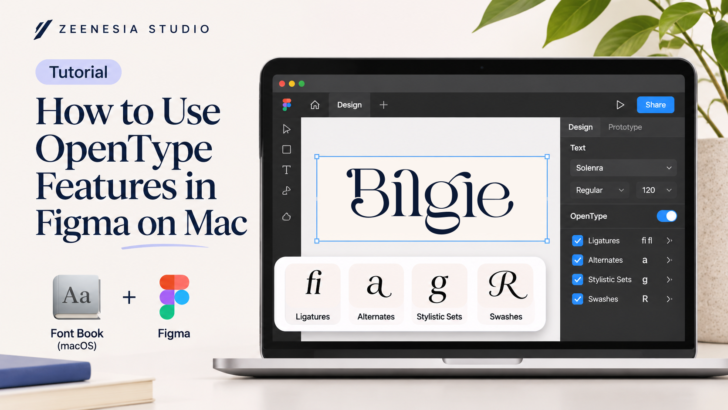
How to Use OpenType Features in Figma on Mac
Font Book on Mac and Figma, here’s a step-by-step guide to help you access and use the OpenType features included in the font.
OpenType features allow you to access special characters and alternative letter designs, such as stylistic alternates, ligatures, swashes, and other decorative glyphs.
1. Install the font using Font Book
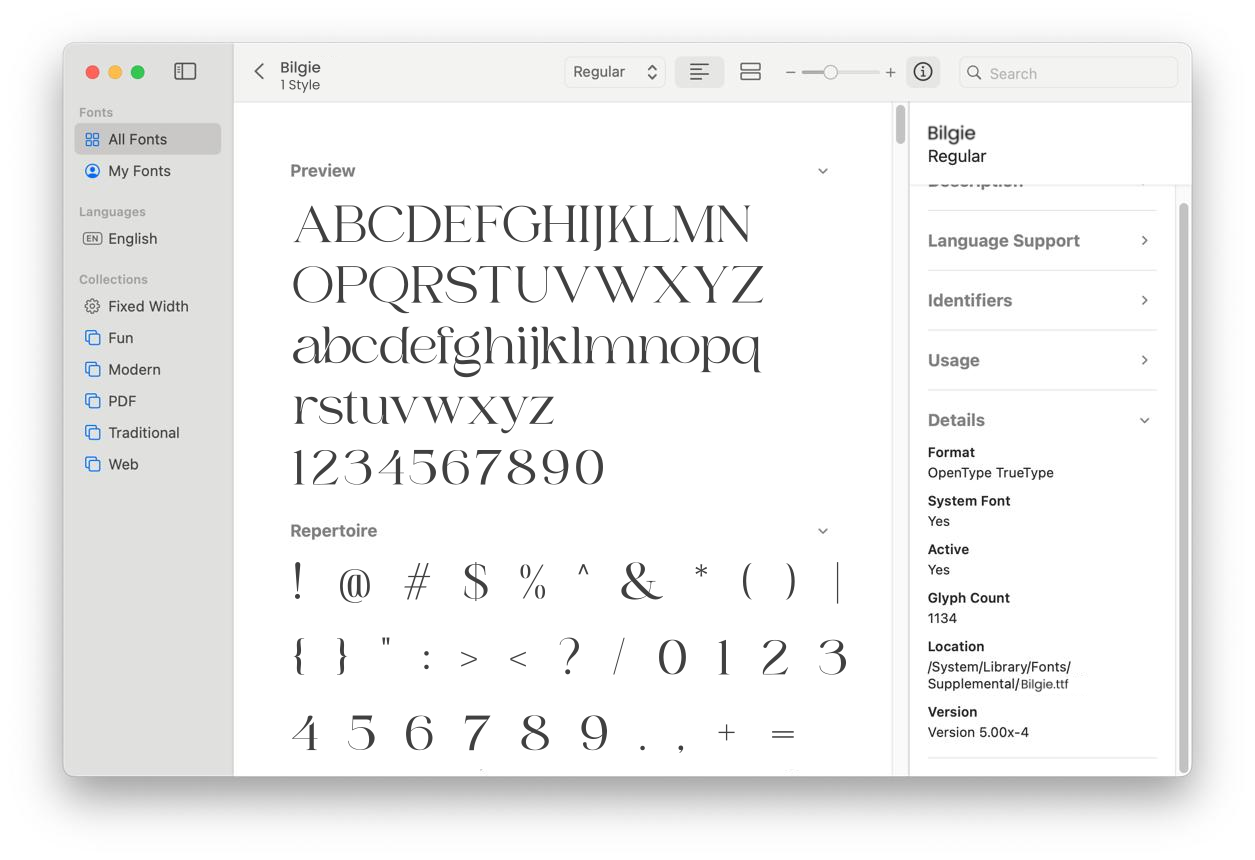
Download and extract the font ZIP file.
Locate the
.OTFfont file.Double-click the font file.
Font Book will open and display a font preview.
Click Install.
The font is now installed on your Mac and available to supported applications.
More information: Apple Font Book Installation Guide.
2. Open the font in Figma
Open your Figma project.
Create a new text layer or select existing text.
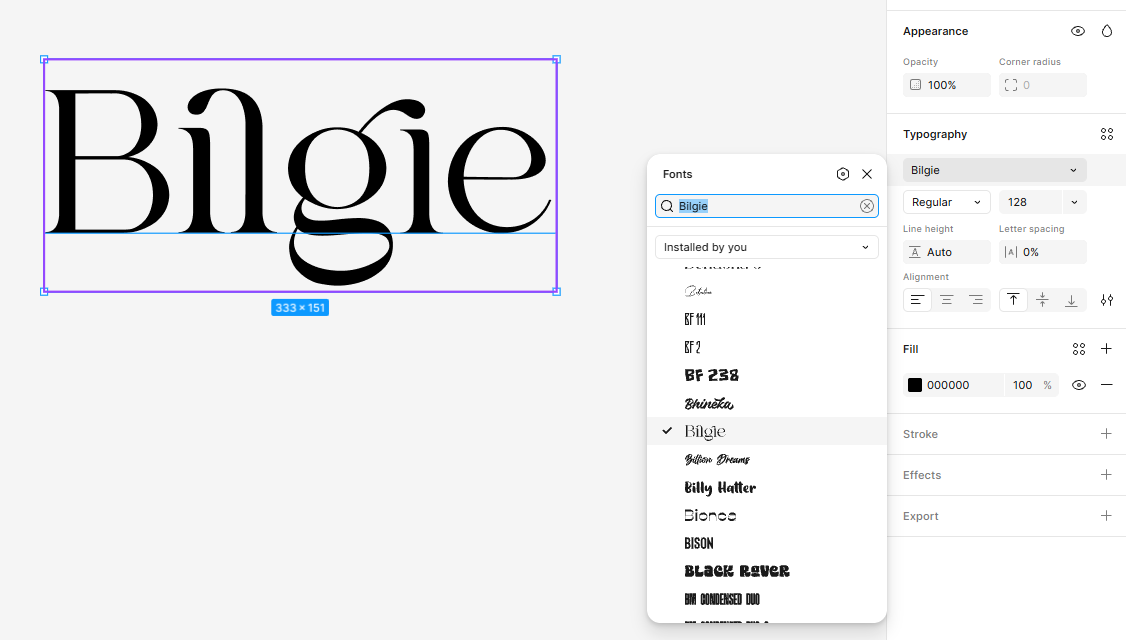
Open the Typography section in the right sidebar.
Click the font family dropdown.
Search for the installed font name.
Select the font.
Important: If you’re using Figma through a web browser, make sure the Figma Font Installer (FigmaAgent) is installed. If you’re using the Figma desktop app, you don’t need to install it separately.
See: Figma – Add a Font to Figma.
3. Access OpenType features
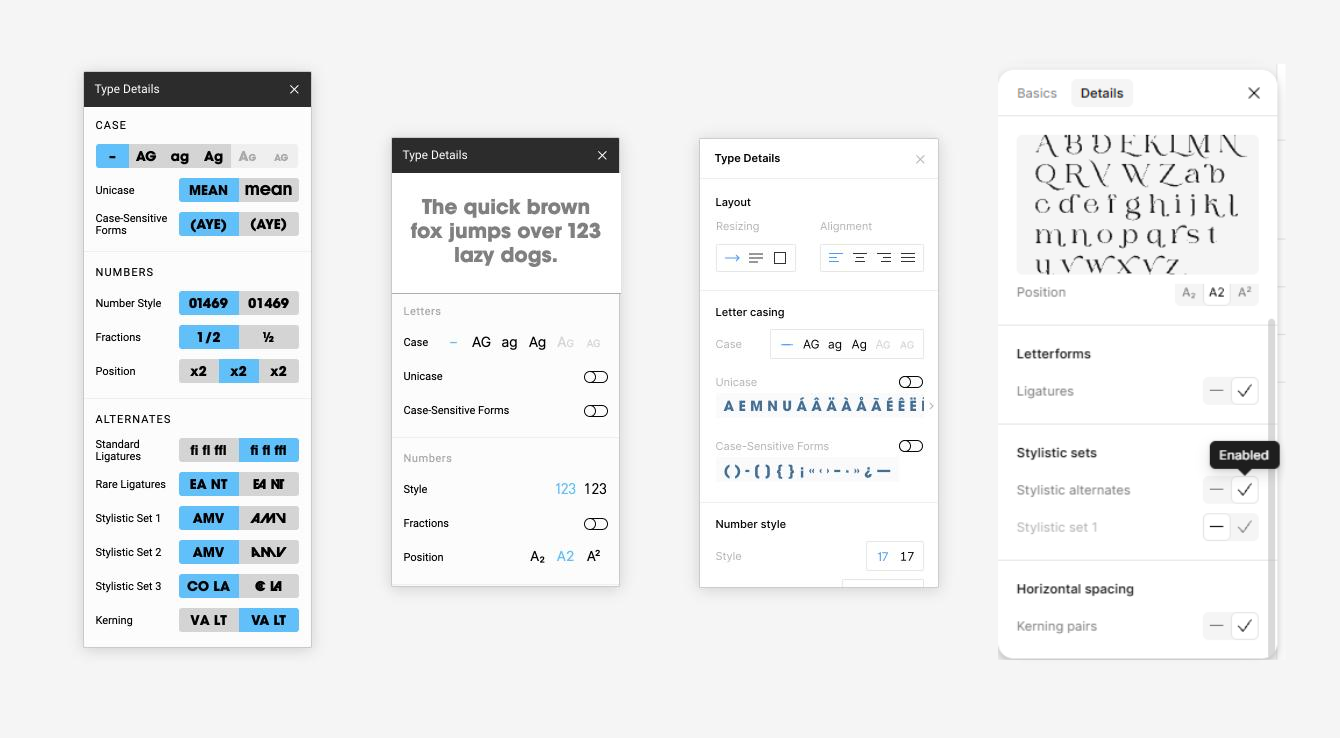
Select your text layer.
Find the Typography section in the right sidebar.
Look for the advanced typography settings (often represented by an icon with sliders or additional settings).
Open the available OpenType options.
Enable the features you want to use, if supported by the font and Figma.
Some common OpenType features include:
| Feature | Description |
|---|---|
| Ligatures (liga) | Combines certain letter pairs into one character |
| Discretionary Ligatures (dlig) | Provides decorative letter combinations |
| Stylistic Alternates (salt) | Changes letters into alternative designs |
| Swashes (swsh) | Adds decorative flourishes |
| Small Capitals (smcp) | Converts lowercase letters into small capitals |
| Contextual Alternates (calt) | Automatically changes letters depending on their context |
Note: The available options depend on the font’s OpenType features and Figma’s support.
4. Explore alternative glyphs
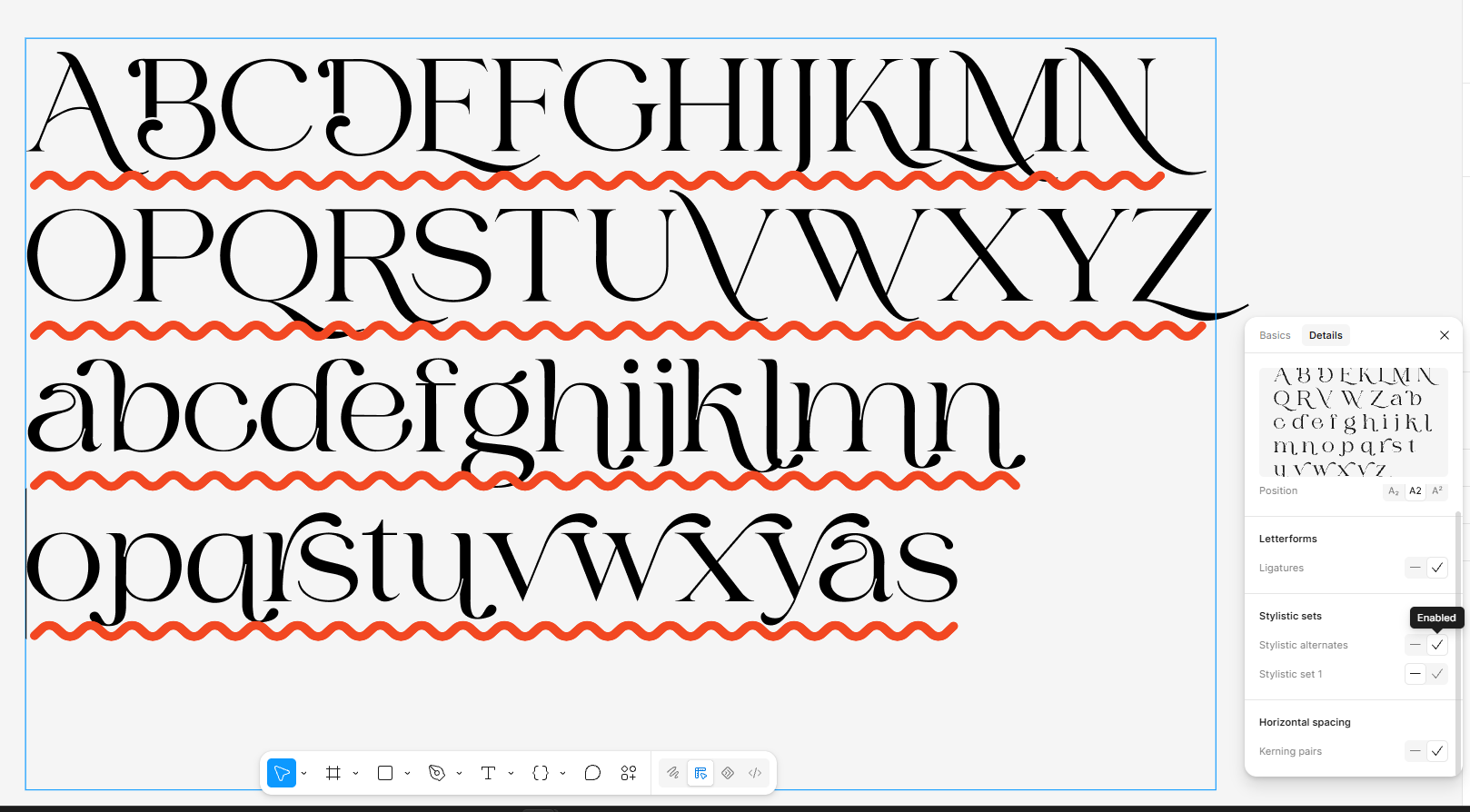
If your font includes alternative characters, you can also explore them through the Glyphs panel or character selection features where available.
For example, some fonts include:
Alternative A, G, R, and other letters.
Decorative beginning and ending characters.
Different styles of lowercase letters.
Special ligatures and swashes.
These alternatives can help you create more unique typography designs.
5. If OpenType features are not appearing
Try these troubleshooting steps:
Make sure you installed the correct OTF version of the font.
Restart Figma after installing the font.
Check whether the font actually includes the OpenType features you’re looking for.
Make sure you’re using the correct font style or weight.
Try creating a new text layer.
One important thing: Font Book is primarily used to install and manage fonts. It does not provide a dedicated interface for activating individual OpenType features. Those features need to be accessed through a compatible design application.