Raster vs Vector: What’s the Difference and When to Use Each? (2025 Professional Guide)

1. Introduction

In digital design, choosing the correct graphic format is essential to ensuring quality, scalability, and performance. The two dominant formats—raster and vector—serve different purposes and behave differently when resized, edited, or exported. Yet many beginners (and even some professionals) use them interchangeably, resulting in blurry logos, oversized files, or poor printing outcomes.

This guide offers a clear, professional explanation of raster and vector graphics, their technical foundations, strengths, weaknesses, and real-world use cases in modern design workflows.


2. What Are Raster Graphics?

Raster graphics are images built from a grid of pixels. Each pixel contains color information, and together they form a complete picture—like a digital mosaic.

Common Raster File Formats:

  • JPEG / JPG

  • PNG

  • GIF

  • TIFF

  • BMP

  • PSD (Photoshop)

How Raster Images Work

Raster images rely on resolution—expressed in PPI (pixels per inch) for digital and DPI (dots per inch) for print. The higher the resolution, the more detail the image can show.

However, resizing a raster image beyond its original resolution will cause pixelation, blurriness, or loss of detail.

Strengths of Raster Graphics

  • Excellent for detailed images like photos or complex illustrations

  • Wide color range and rich gradients

  • Ideal for textures and realistic visuals

  • Supported universally across web and print

Limitations

  • Cannot scale without losing quality

  • Larger file sizes (especially high-resolution PNG and TIFF)

  • Not ideal for logos or icons

  • Editing requires powerful hardware when files become large


3. What Are Vector Graphics?

Vector graphics are built using mathematical formulas—points, paths, curves, and shapes. Unlike pixel-based images, vectors are resolution-independent.

Common Vector File Formats:

  • SVG

  • AI (Adobe Illustrator)

  • EPS

  • PDF (supports both raster and vector)

  • CDR (CorelDRAW)

How Vector Images Work

Vectors use formulas to define shapes. Because they are not tied to pixel density, they can be scaled infinitely—from a small icon to a billboard—without any loss of quality.

Strengths of Vector Graphics

  • Infinitely scalable with no pixelation

  • Small file sizes

  • Perfect for logos, icons, and typography

  • Easy to edit components independently

  • Ideal for design systems and UI assets

Limitations

  • Not suitable for photographs

  • Complex textures and realistic shading are difficult

  • Some older printers and applications may struggle with certain vector formats

  • Requires vector-capable software (Illustrator, Figma, CorelDRAW)


4. Raster vs Vector: Core Differences

AspectRaster GraphicsVector Graphics
CompositionPixelsMathematical paths
ScalabilityLimitedInfinite
File SizeLargerSmaller
Best ForPhotos, textures, digital paintingLogos, icons, diagrams
EditingPixel-based editingShape and path editing
Typical SoftwarePhotoshop, ProcreateIllustrator, Figma

Each format excels when used in the right context.


5. When to Use Raster Graphics

Use Raster When:

  • You’re working with detailed photography

  • You need realistic textures or complex lighting

  • Creating digital paintings or illustrations with blended colors

  • Designing social media graphics with images

  • Editing image-based content like product photos or portraits

Industries That Rely on Raster:

  • Photography

  • Advertising

  • Digital art and illustration

  • Web content creation

  • E-commerce (product images)

Raster is ideal for any project where visual detail and texture are critical.


6. When to Use Vector Graphics

Use Vector When:

  • Designing logos, icons, or brand assets

  • Creating scalable graphics for print (banners, posters, packaging)

  • Building UI assets (buttons, icons, components)

  • Designing infographics or illustrations with flat colors

  • Producing assets for CNC cutting, embroidery, and signage

Industries That Rely on Vector:

  • Branding and visual identity

  • UI/UX design

  • Print production

  • Motion graphics

  • Packaging design

Vectors offer clarity, consistency, and flexibility—especially for professional branding.


7. Can Raster and Vector Be Combined?

Yes. Many modern design workflows use both formats together.

Examples:

  • A product photo (raster) combined with a logo watermark (vector)

  • A UI mockup integrating raster background images with vector icons

  • Motion graphics software mixing raster textures with vector elements

  • Print layouts containing raster images and vector typography

Tools like Adobe Illustrator, Photoshop, Figma, and InDesign allow seamless integration.


8. Converting Raster to Vector (and Vice Versa)

Raster to Vector Conversion

Tools like Illustrator’s Image Trace can convert simple raster shapes into vectors.
Best results occur with:

  • Line art

  • Logos

  • Simple illustrations

Complex photos cannot be fully vectorized without losing realism.

Vector to Raster Conversion

This is straightforward: exporting a vector as PNG, JPG, or TIFF.
Use cases:

  • Web uploads

  • Social media

  • Printing that requires raster formats

However, once rasterized, the vector loses scalability.


9. Final Thoughts

Understanding the difference between raster and vector graphics is essential for producing high-quality design work. Raster images deliver unmatched photographic detail, while vector graphics provide flexibility and scalability. Using the correct format ensures your projects maintain clarity, professional quality, and optimal performance across all mediums.

Whether you’re designing a logo, editing a photo, building a website, or creating print materials, mastering the right graphic format is a fundamental skill every designer should have in 2025.

Creative Projects You Can Design with Inkscape

Inkscape isn’t just another free vector design tool — it’s a creative powerhouse.
As an open-source alternative to Adobe Illustrator, Inkscape gives you professional design capabilities without the subscription fees.

Whether you’re a beginner exploring vector graphics or a pro looking for efficient workflows, Inkscape offers endless creative potential.
Here are some of the best creative projects you can design with Inkscape — and how to make the most out of its features.


1. Logo Design

Inkscape is perfect for creating professional, scalable logos.
With its vector-based tools, you can design clean, precise shapes and typography that look sharp at any size.

What you can do:

  • Sketch your concept using the Pencil or Pen Tool.

  • Align shapes with grids and snapping.

  • Use gradients, blur, and shadows for subtle depth.

💡 Pro Tip: Export your logo in SVG format for infinite scalability — or PNG for quick sharing online.


2. Icon Sets and UI Elements

Need to design a custom icon set or UI buttons?
Inkscape’s alignment tools, path operations, and grid system make it ideal for pixel-perfect interface elements.

Why it works:

  • You can use layers for organized icon sets.

  • Export icons as SVG for web or app development.

  • Combine strokes and fills for minimalist flat icons.

🎯 Great for: App designers, web developers, and freelancers building UI kits.


3. Posters and Print Materials

With Inkscape, you can design high-resolution posters, flyers, and brochures ready for print.
It supports CMYK color workflows, ensuring your colors look consistent on paper.

Design ideas:

  • Create event posters or music festival layouts.

  • Experiment with typography and composition grids.

  • Add texture or gradients for a professional finish.

🖨️ Bonus Tip: Always use the “Document Properties” panel to set your print size and bleed margins correctly.


4. T-Shirt and Merchandise Design

Inkscape integrates well with print-on-demand workflows like Redbubble or Teespring.
Designing T-shirt graphics, stickers, or tote bags becomes easy with vector precision.

What to try:

  • Use bold outlines and limited color palettes.

  • Test how designs look on different shirt colors.

  • Export your design as transparent PNG or PDF for print.

👕 Pro Tip: Combine text and shape tools to create retro or minimalist apparel art.


5. Infographics and Data Visualization

Want to make data look engaging?
Inkscape allows you to visualize information with icons, charts, and clean vector layouts.

Key benefits:

  • Create reusable infographic templates.

  • Use color gradients to highlight important data.

  • Align elements perfectly with snapping and guides.

📊 Best for: Bloggers, marketers, educators, and content creators.


6. Digital Illustrations

If you love drawing, Inkscape’s Bezier Tool and Calligraphy Pen let you create smooth, expressive illustrations.
It’s great for character art, vector portraits, and stylized landscapes.

Creative tip:
Try combining flat colors with gradients and soft shadows to create depth — a technique often used in modern vector art.

🎨 Popular styles: Flat design, geometric art, minimalist vector scenes.


7. Social Media Graphics

Inkscape isn’t just for print — it’s fantastic for digital visuals too.
You can create social media banners, post templates, and story layouts optimized for each platform.

Examples:

  • Instagram quote templates

  • YouTube thumbnails

  • Pinterest pins and infographics

💡 Workflow tip: Use templates for quick resizing and keep reusable brand color palettes.


Conclusion

Inkscape proves that you don’t need expensive software to create professional designs.
From logos and icons to merchandise and infographics, it’s a versatile tool for designers who value creativity and freedom.

The best part?
Because it’s open source, the Inkscape community keeps growing — with new plugins, tutorials, and inspiration appearing every day.

So, open Inkscape, start a blank canvas, and let your ideas flow.
🎨 Creativity begins with a single vector.

7 Graphic Design Mistakes You’re Probably Making (And How to Fix Them)

Introduction

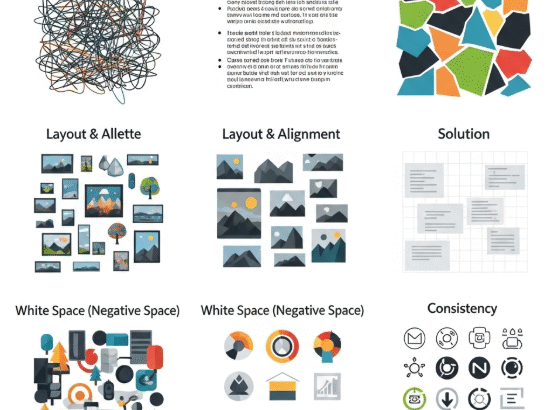
Even experienced designers can fall into common pitfalls that reduce the effectiveness of their work. From layout errors to color choices, small mistakes can make your designs look unprofessional. In this article, we’ll explore 7 graphic design mistakes and how to fix them, so your visuals stand out and resonate with your audience.


1. Ignoring Visual Hierarchy

Mistake: Placing elements randomly without guiding the viewer’s eye.
Why it matters: Poor hierarchy makes your design confusing and hard to read.
How to fix it:

  • Use size, color, and contrast to emphasize important elements.

  • Position key elements strategically to guide the viewer.

  • Apply grids or alignment tools for consistency.


2. Using Too Many Fonts

Mistake: Mixing multiple font styles in one design.
Why it matters: Excessive fonts create visual chaos and reduce readability.
How to fix it:

  • Stick to 2–3 fonts per project.

  • Pair a clean sans-serif with a decorative serif for balance.

  • Ensure headings, subheadings, and body text have consistent fonts.


3. Poor Color Choices

Mistake: Choosing colors without considering harmony, contrast, or accessibility.
Why it matters: Bad color schemes can confuse viewers or make text hard to read.
How to fix it:

  • Use color palettes from tools like Adobe Color or Coolors.

  • Ensure enough contrast between text and background.

  • Consider color psychology for your target audience.


4. Neglecting White Space

Mistake: Crowding every corner of your design with content.
Why it matters: Lack of breathing space overwhelms viewers.
How to fix it:

  • Embrace white space to highlight important elements.

  • Use margins and padding consistently.

  • Let your design “breathe” for a cleaner, professional look.


5. Overusing Stock Images

Mistake: Relying heavily on generic stock photos.
Why it matters: Makes your design feel impersonal or clichéd.
How to fix it:

  • Customize stock images with overlays, filters, or illustrations.

  • Use original graphics or photos whenever possible.

  • Ensure images match your brand style.


6. Ignoring File Formats and Resolution

Mistake: Using low-resolution images or wrong file types for the medium.
Why it matters: Blurry or pixelated designs look unprofessional.
How to fix it:

  • Use high-resolution images (300 DPI for print, 72 DPI for web).

  • Export in the correct format (PNG for transparency, JPG for photos, SVG for logos).

  • Test your designs on different devices before publishing.


7. Not Considering Accessibility

Mistake: Designing without thinking about all users, including those with disabilities.
Why it matters: Your design may exclude people with visual or cognitive impairments.
How to fix it:

  • Ensure sufficient color contrast.

  • Use readable fonts and font sizes.

  • Add descriptive alt text for images.


Conclusion

Avoiding these 7 graphic design mistakes can instantly elevate your work, making it more professional, readable, and engaging. Remember, good design is not just about aesthetics—it’s about communicating your message clearly and effectively.

From Sketch to Screen: The Modern Logo Design Process Explained

A great logo may look simple — but behind every clean mark lies hours of strategy, sketching, and refinement.
The modern logo design process is a blend of creativity, research, and digital precision.

In this article, we’ll walk through how professional designers bring a logo to life — from the first pencil sketch to the final polished digital file.


1. Understanding the Brand

Every strong logo starts with clarity, not creativity.
Before opening any design software, the designer must understand the brand’s:

  • Mission and values

  • Target audience

  • Personality and tone

  • Industry trends and competitors

This foundation shapes the direction of the design. A logo for a luxury skincare brand will communicate elegance and softness, while a tech startup might emphasize innovation and simplicity.

💡 Pro tip: Ask your client strategic questions before sketching anything. A deep understanding of their goals saves hours of redesign later.


2. Research and Inspiration

Next comes the discovery phase — gathering visual inspiration and references.

Designers often create moodboards to explore:

  • Color schemes

  • Typography ideas

  • Symbolic imagery

  • Competitor logos

The goal here isn’t to copy — it’s to understand the visual language of the brand’s world.
Pinterest, Behance, and Dribbble are great platforms for inspiration, but a designer’s originality is what makes the result truly stand out.


3. Sketching the Concepts

Now comes the creative explosion — the sketchbook stage.
Designers begin by brainstorming shapes, letterforms, and symbols that reflect the brand identity.

Sketching is powerful because it’s fast and flexible. You can explore dozens of directions before committing to one idea.
Sometimes, the best logos start as a rough pencil doodle that captures a spark of meaning.

✏️ Pro tip: Don’t aim for perfection here. Aim for clarity of concept.


4. Digitizing the Design

Once the best sketches are selected, the next step is bringing them to life digitally — usually in Adobe Illustrator, Affinity Designer, or Figma.

Here, the designer refines proportions, symmetry, and line precision using vector tools.
Colors, grids, and typography are tested to ensure the logo works across different media.

This phase transforms raw creativity into structured design — where art meets geometry.


5. Refinement and Feedback

Designers usually create several variations: different compositions, color options, or type pairings.
These are then shared with the client for feedback.

Constructive revisions are part of the process — they help align the logo with real-world brand expectations.
Refinement is where good logos become timeless.

💬 Remember: every tweak should serve purpose, not just aesthetics.


6. Testing the Logo in Context

A modern logo must look great everywhere — from a mobile app icon to billboard signage.
That’s why designers use mockups to test the logo on real-world materials like business cards, packaging, or websites.

This step ensures legibility, scalability, and adaptability across platforms.
A logo that only works on one background isn’t a strong brand asset — flexibility is key.


7. Final Delivery and Guidelines

The final stage includes exporting high-quality logo files in various formats (AI, SVG, PNG, PDF) and creating a brand style guide.
This document explains how to use the logo correctly — including spacing, color codes, and size recommendations.

A well-documented logo system protects brand consistency across all uses.


8. The Beauty of the Process

From rough sketch to pixel-perfect precision, the logo design process is a journey of problem-solving, creativity, and storytelling.

Every curve, space, and color choice represents a decision — one that defines how the world perceives a brand.

The next time you see a simple logo, remember: simplicity is the result of complexity, carefully refined.


Conclusion

Modern logo design is both art and strategy.
It requires empathy to understand a brand, creativity to visualize it, and technical skill to bring it to life.

Whether you’re a beginner designer or a brand owner, understanding this process helps you appreciate that behind every great logo — there’s a story from sketch to screen.

The Power of Minimalist Branding: How Simplicity Builds Stronger Brands

Introduction
In a world filled with noise, bold ads, and flashy visuals, the brands that truly stand out are often the simplest ones.
This is where minimalist branding shines.

Minimalism in branding isn’t about being plain or boring — it’s about focusing on what really matters.
It’s about clarity, purpose, and confidence. Let’s explore why “less is more” in branding and how you can use it to build a stronger brand identity.


1. What Is Minimalist Branding?
Minimalist branding is all about simplicity. It means removing the unnecessary and keeping only what truly represents your brand.

Think of it like cleaning up your workspace — once the clutter is gone, everything feels clearer and more focused.

A minimalist brand usually features:

  • A clean, simple logo

  • A limited color palette

  • Easy-to-read typography

  • Plenty of whitespace

It’s not about doing less work — it’s about creating more impact with less distraction.


2. Why Simplicity Works
Our brains love simplicity. When your brand is easy to understand, people remember it faster and trust it more.

Big names like Apple, Nike, and Google use minimalist design because it shows confidence and clarity.

Simplicity sends a message that says:

  • “We know who we are.”

  • “We don’t need to shout to be seen.”

  • “We focus on quality, not clutter.”

That’s powerful branding.


3. How to Create a Minimalist Brand
Here are a few simple ways to apply minimalist principles to your brand:

Simplify your logo.
Use clean shapes and remove unnecessary details. Make sure it looks good in black and white too.

Choose two or three colors.
Stick to shades that reflect your brand’s emotion — calm, energetic, elegant, etc.

Use whitespace wisely.
Let your design breathe. Whitespace makes your content feel modern and professional.

Keep your message short and clear.
Minimalist branding isn’t just visual — it’s also about communication. Say less, mean more.


4. Mistakes to Avoid
Minimalist branding might look simple, but it’s easy to go too far.
Avoid these common mistakes:

  • Making your design too plain or emotionless

  • Using fonts that look too generic

  • Removing too much information

  • Forgetting your brand’s unique voice

Remember, minimalism doesn’t mean lifeless — your brand should still feel human and engaging.


5. Real-World Examples
Here are some brands that do minimalist design right:

  • Apple: Clean layouts and bold whitespace.

  • Spotify: Simple green circle logo and flat design.

  • Airbnb: Soft colors and approachable design tone.

They prove that simplicity not only looks modern but also creates emotional connection and long-term recognition.


Conclusion
Minimalist branding isn’t just a trend — it’s a timeless approach.
It helps people see your brand, not just look at it.

When you strip away the noise, your message becomes stronger, your visuals more memorable, and your audience more connected.

Because in branding, as in life, less really is more.

5 Essential Branding Tips for Small Businesses and Freelancers

Introduction
Branding is more than just a logo or a color scheme—it’s the way your audience perceives your business. Whether you’re a small business owner or a freelancer, a strong brand can help you stand out, build trust, and attract loyal customers. In this article, we’ll cover 5 essential branding tips that anyone can implement to create a memorable and professional brand.


1. Define Your Brand Identity
Before designing logos or marketing materials, define your brand’s mission, values, and personality. Ask yourself:

  • What problem does my brand solve?

  • What emotions do I want to evoke?

  • Who is my target audience?

Having a clear identity makes all branding decisions consistent and effective.


2. Design a Memorable Logo and Visual Identity
Your logo, colors, and typography should reflect your brand personality. Keep it simple, versatile, and consistent across all platforms. Free tools like Canva or Figma can help beginners design professional-looking visuals.


3. Craft a Strong Brand Voice
Brand voice is how your business communicates with your audience. Are you friendly, professional, humorous, or inspiring? Your tone should remain consistent in emails, social media posts, website copy, and marketing materials.


4. Maintain Consistency Across Channels
Consistency builds recognition. Use the same colors, fonts, logos, and messaging across all channels—website, social media, email newsletters, and packaging. A cohesive brand helps customers remember and trust your business.


5. Engage With Your Audience Authentically
Interact with your audience genuinely. Respond to comments, share stories behind your brand, and create valuable content. Engagement strengthens relationships and fosters loyalty, turning customers into brand advocates.


Conclusion
Branding is not just about aesthetics—it’s about creating a memorable experience for your audience. By defining your identity, designing a cohesive visual style, maintaining a consistent voice, and engaging authentically, you can build a strong brand that resonates with your target audience.